
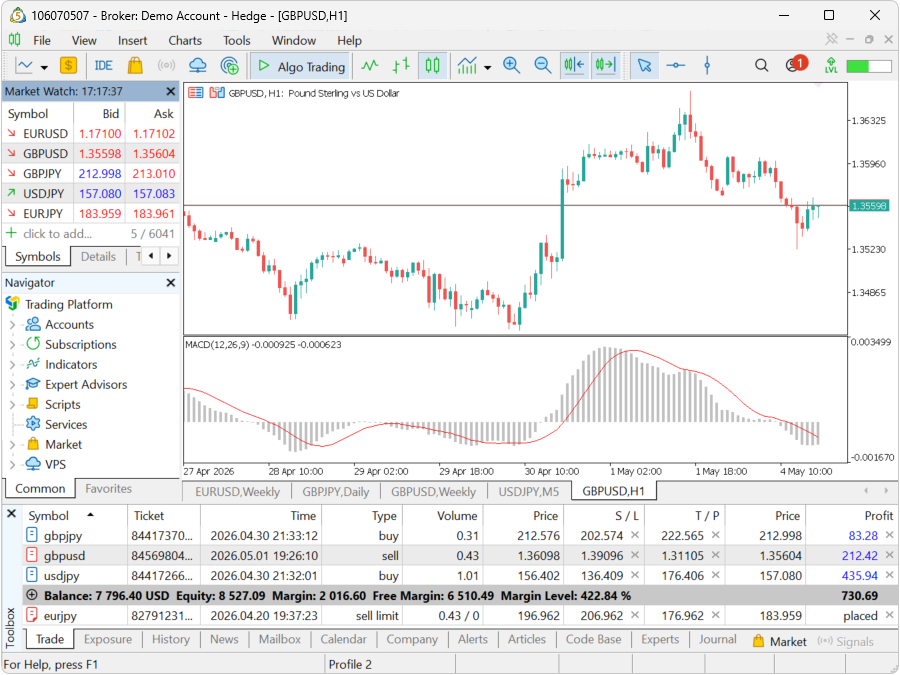
What is MetaTrader 5
MetaTrader 5, or MT5, is a multifunctional trading platform from MetaQuotes. The terminal receives quotes from the broker’s server, displays charts and account parameters, allows placing trade orders, managing positions, analyzing the market, and running algorithmic programs.
The official desktop version combines technical and fundamental analysis, trading operations, an economic calendar, MQL5, and a strategy tester. Web and mobile apps are also available, but their feature sets differ: development and full testing of expert advisors are primarily associated with the desktop terminal.
Charts, order book, market and pending orders, S/L, T/P, history and notifications.
Expert Advisors and indicators in MQL5, MetaEditor, testing, optimization and execution log.
Forex, CFDs, stocks, futures and other instruments — only if they are offered by the broker.
Windows, macOS via the provider's solution, Web, Android and iOS; the versions' features are not identical.
How to download and install MT5 safely
- First, open an account with the selected broker or create a demo account.
- Download the installer from the broker's client portal or from the official MetaTrader 5 website.
- Verify the domain and the digital signature of the file. Do not install “builds” from random archives, channels, or forums.
- Run the installer, select a folder, and complete the installation.
- After the first launch, check the broker's name and its list of servers.
Why the broker installer is convenient: It usually already has the required servers and the company's name pre‑configured. However, the trading account itself is still created with the broker, not within the software.
Select a broker after reviewing the interface.
MT5 is available at Tickmill, IC Markets, and FP Trading. Open a demo account first and check the server, symbols, and contract specifications.
CFD and margin trading involve high risk.
Demo account, live account, and login credentials
To connect to an existing account you need three items: trading login, password, and the exact server name. In the menu select account login and enter the credentials provided by the broker. Confusion between Demo and Live, as well as between different legal entities of the same brand, is a common cause of authentication errors.
| Data | What are they for? | What you must not do |
|---|---|---|
| Login | Trading account identifier. | Do not confuse with the personal account email. |
| Master password | Full access, including trading. | Do not disclose to third parties and do not store in plain text. |
| Investor password | Account view without the right to submit trades. | Do not expect to be able to trade with it. |
| Server | Broker's trading server address. | Do not choose a similar name “by eye”. |
A demo account is needed to study the interface and mechanics. It does not replicate all psychological and execution characteristics of the real market: liquidity, slippage, and emotional reaction to loss may differ.
MT5 interface: five main areas
- Market Overview / Market Watch. Symbols, Bid/Ask, statistics, tick chart, specification and quick order entry.
- Navigator / Navigator. Accounts, indicators, expert advisors, scripts, services and access to programs.
- Charts. Price, timeframes, indicators, chart objects and trading levels.
- Tools / Toolbox. Open positions and orders, history, news, calendar, alerts, journal and expert messages.
- Command panels. New order, auto-trading, chart type, scale, timeframes, and workspace saving.
If a window disappears, do not reinstall the terminal immediately. Most panels can be restored via the "View" menu. Before trading, expand the "Trade" and "Journal" tabs — the former shows account status, the latter helps understand why a command did not execute.
How to find an instrument and read its specification
In Market Watch, open the symbol list and add the desired instrument. Different brokers may name the same gold as XAUUSD, GOLD, or have a suffix. Searching by a familiar ticker does not guarantee that the contract you find is exactly the one you expected.
Before your first trade, open the "Specification". Check the contract size, minimum and maximum volume, lot step, tick size, tick value, profit and margin currency, trading sessions, commission, swap, minimum level distance, and execution mode.
- The symbol name and description correspond to the appropriate market.
- The trading session is currently open.
- The minimum lot size and volume step fit your risk calculation.
- The contract size and tick value are clear.
- Commission and swap are accounted for in the trade plan.
- You know whether the instrument is a CFD, spot, future, or stock.
Charts, timeframes and templates
MT5 supports 21 timeframes, up to 100 simultaneously open charts, 38 built-in technical indicators and 44 analytical objects. Quantity alone does not make analysis better: the workspace should display only what aids a specific decision.
- Open a chart from Market Watch.
- Select bars, candles or line.
- Set the timeframe and enable auto‑scroll if needed.
- Configure colors, scale, grid and the display of trading levels.
- Add indicators via the Navigator or the Insert menu.
- Save the layout as a template, and the chart set as a profile.
Practical tip: Keep separate profiles for analysis and trading. This reduces the risk of accidentally sending an order when you are just studying another instrument or timeframe.
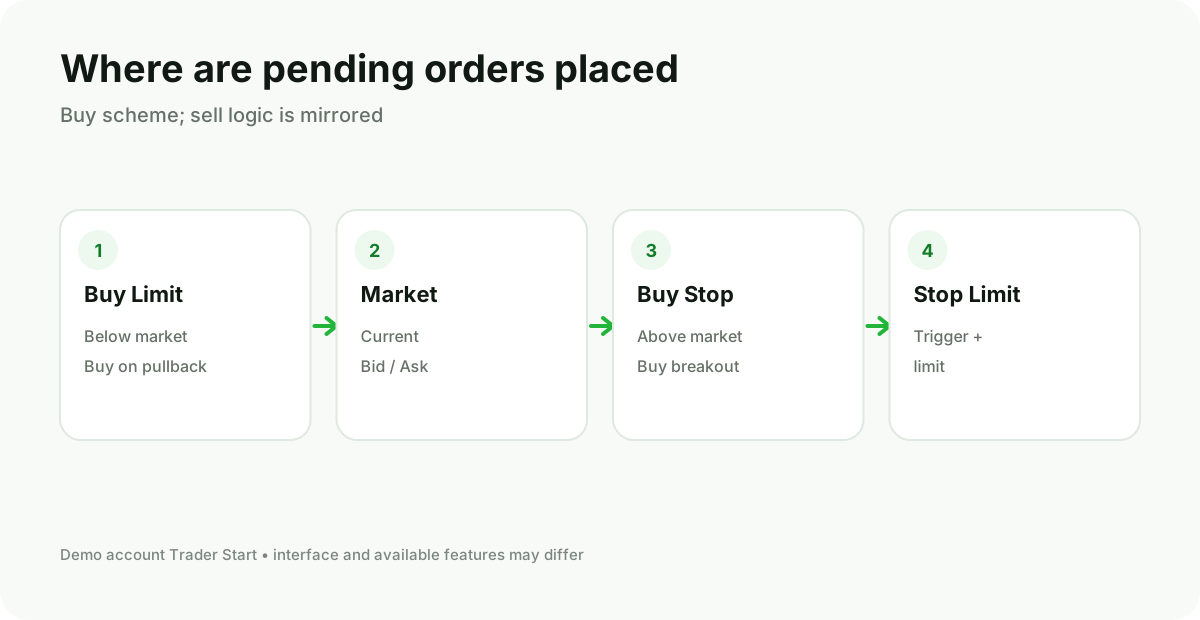
How to open a trade
Open the “New Order” window. Double‑check the symbol, execution type, and volume. Then select a market or pending order, set the S/L and T/P, and only then submit the command.
| Type | Meaning | Main risk of error |
|---|---|---|
| Market | Buy or sell at the available price now. | Slippage and incorrect volume. |
| Buy Limit | Buy below the current price. | Confuse with Buy Stop. |
| Sell Limit | Sell above the current price. | Confuse with Sell Stop. |
| Buy Stop | Buy after the rise to the level. | Enter on impulse with slippage. |
| Sell Stop | Sell after the decline to the level. | Activation on a sharp move. |
| Stop Limit | After the stop price is reached, a limit order is created. | The order may not be filled after activation. |
Detailed scenarios and step-by-step order modifications are provided in a separate material: Order Types in MT5.
Position, order and trade — not the same thing
Order — instruction to the broker. Trade — execution. Position — the current result of one or several trades on an instrument. These terms are especially important in MT5 because the account can operate in netting or hedging mode.
| Mode | How operations are accounted | What is important |
|---|---|---|
| Netting | A single final position is created for each symbol; the next trade modifies its volume or direction. | You cannot treat each buy and sell as a completely separate position. |
| Hedging | Separate positions can exist for a single symbol, including opposite ones. | Risk is calculated across the entire set of positions, not per each individually. |
The account mode is set by the broker when the account is created. It usually cannot be changed with a single setting in the terminal.
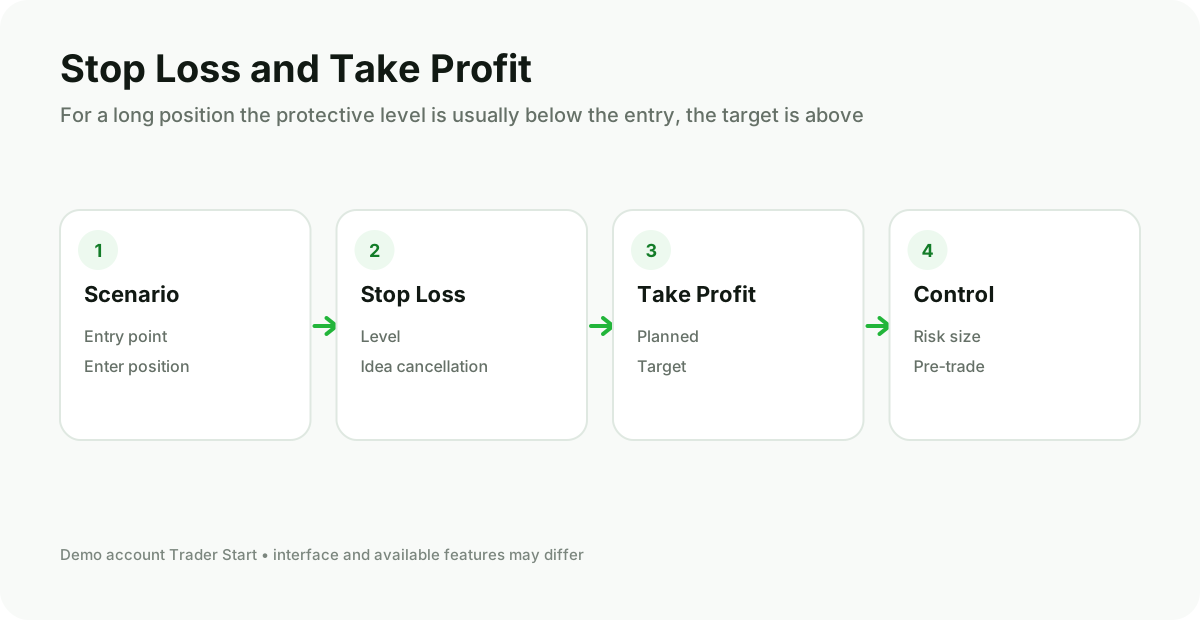
Lot, Stop Loss, Take Profit and margin
The Volume field sets the position size. One lot does not have a universal monetary value: it depends on the symbol’s specification. Therefore you cannot carry over the familiar size from EURUSD to gold, an index, or a CFD stock without recalculating.
Stop Loss limits the loss scenario, and Take Profit sets the target exit level. They do not guarantee an exact price in the event of a gap or rapid movement. Before entering a trade, define the idea’s cancellation point, the monetary risk, and only then calculate the size.
Balance shows the result of closed trades. Equity reflects the current floating result. Margin is the collateral for positions, Free Margin is the available reserve, Margin Level is the ratio of equity to used margin. The margin call and stop out thresholds are set by the broker.
How to modify or close a position
- Open the “Trade” tab in Toolbox.
- Find the position by symbol and ticket.
- Open the edit window, set or modify the S/L and T/P.
- For a partial close, specify a volume less than the current position, if this is supported by the account mode.
- For a full close, use the position close command and verify the result in the history.
The cross icon in the position row can close it instantly when one‑click trading is enabled. If you are unsure about the setting, close via the full order window with confirmation.
Indicators, objects and alerts
An indicator is calculated from chart data and helps structure observation, but it does not predict the market flawlessly. Before using it, verify the parameters, calculation price, period, and whether the indicator updates past values when new data appear.
Graphic objects—lines, channels, Fibonacci and other tools—are saved on the chart. Alerts help you avoid constantly watching the screen: they can be set based on price or time, and then reviewed in the Alerts tab.
Experts, MQL5 and Strategy Tester
The MT5 algorithmic ecosystem uses MQL5. An Expert Advisor can analyze data and send trade commands, an indicator calculates and displays values, a script performs a one‑time action. A file written for MT4 in MQL4 cannot be assumed to be automatically compatible with MT5.
- Obtain the source code or compiled file from a trusted source.
- Place it using the Open Data Folder command, not in an arbitrary program directory.
- Compile the source code in MetaEditor and review the warnings.
- First run the strategy tester on proper data.
- Conduct a forward test on a demo account.
- Check the journal, permissions, symbol, timeframe, and risk parameters.
- Do not enable automated trading on a live account until you understand every action of the algorithm.
The tester does not prove future profit. The result depends on data quality, spread, commissions, swaps, latency, execution model, and the selected period. Optimizing on a single segment easily creates an overfitted strategy.
MT5 on mobile and in the browser
The mobile version is suitable for monitoring the account, charts, and core trading operations. The web version lets you log in from a browser without installation. However, expert advisors and custom desktop extensions should not be assumed to be equally available across all versions.
- On the phone, enable device lock and biometrics.
- Do not store the master password on someone else’s device.
- Check the symbol and volume especially carefully: the screen is smaller and the elements are more tightly packed.
- When the connection is unstable, do not blindly press the button again — first refresh the position status.
- For continuous operation of the advisor, use a reliably functioning computer or VPS and monitor the log.
Security and Log
- Download the terminal and extensions only from trusted sources.
- Do not share the master password with the “manager”, signal author, or robot seller.
- Use a separate strong password for your broker’s client portal and enable 2FA if available.
- Before launching an advisor, review its permissions and network activity.
- Regularly back up templates, source files, and settings separately from the terminal.
- After any error, check the Journal and Experts tabs, and do not repeat the command arbitrarily.
Common MT5 issues
| Symptom | What to check |
|---|---|
| No connection / no communication | Internet, selected server, broker status, system date and time, network lockout. |
| Invalid account | Login, password, Demo/Live and exact server name. |
| Market closed | Trading session of the symbol and holiday schedule. |
| Invalid volume | Minimum volume, maximum volume and lot step in the specification. |
| Invalid stops | Minimum distance, correct side S/L and T/P, current Bid/Ask. |
| Not enough money | Free margin, leverage, contract size and volume. |
| Expert Advisor is not trading. | Algo Trading permission, parameters, symbol, timeframe, Experts log and account restrictions. |
First training session: 20 minutes
- Log in to the demo account and make sure there is a connection.
- Add a single symbol and open its specification.
- Create a clean chart, select a timeframe, and add one indicator.
- Calculate the practice size and open a minimum demo position with S/L and T/P.
- Adjust the levels, then close part or the entire position.
- Create and cancel a Buy Limit and a Sell Stop.
- Find the trades in the history and the messages in the journal.
- Close the terminal and check whether the profile has been saved.
Where to use MT5
Tickmill, IC Markets and FP Trading offer accounts for trading via MetaTrader 5. Before registering, check which instruments, commissions and account types are available in your specific region.
CFD and margin trading carry high risk. First, review the terms, the legal entity, and the demo account.
Frequently Asked Questions
Is MT5 free?
The client platform itself is usually provided to the user for free. Trading costs arise according to the broker account terms: spread, commission, swap and other fees.
Can you log into MT5 with an MT4 login?
Usually not. MT4 and MT5 accounts belong to different server systems. The broker must create a separate compatible account.
Does MT5 work without a broker?
To receive market quotes and submit real orders you need an account and the broker’s server. The interface can be explored on a demo account.
Is it possible to trade stocks in MT5?
The platform technically supports various asset classes, but specific stocks, CFDs, or exchange‑traded instruments must be available from the broker and on the selected account.
Why does the price on the chart differ from the execution level?
The chart can display the Bid, while buying and some conditions depend on the Ask. Spread, slippage, and market gaps are also possible.
Do I need a VPS?
It's not required for manual trading. A VPS is useful if an EA or terminal needs to run continuously, and a home computer and internet cannot be considered continuously available.
What to study next?
Command names may vary depending on the language, application version, and broker build.