
What is MetaTrader 4
MetaTrader 4 is a MetaQuotes trading platform, primarily built for the currency market and widely used by brokers for Forex and CFD. It provides quotes, chart analysis, placement of market and pending orders, position monitoring, and execution of programs in MQL4.
MT4 provides 9 timeframes, 30 built‑in technical indicators, chart objects, four main types of pending orders, the MetaEditor environment, and a strategy tester. The web and mobile versions are convenient for monitoring and manual operations, but they do not replace the desktop development environment for Expert Advisors.
Simple familiar interface and a large ecosystem of legacy indicators and MQL4 Expert Advisors.
Fewer built-in timeframes and order types than in MT5, and a separate incompatible code ecosystem.
Traders whose broker provides the required account only in MT4 or who need a specific MQL4 tool.
For a new user without legacy platforms, it is useful to first study the differences between MT4 and MT5.
Installation and first launch
- Open a demo or live MT4 account with a broker.
- Download its official MT4 installer or client from the MetaTrader website.
- Install the program and launch the terminal.
- Find the exact broker server: Demo and Live are usually separated.
- Enter the account number and password.
- Make sure the quotes are updating and there is a connection in the lower right corner.
On macOS and Linux, MT4 can run via a compatible installer and the Wine layer. This should be taken into account when attaching non‑standard libraries and advisors: first test the entire configuration on a demo account.
Check MT4 account compatibility
The MT4 account is created separately with the broker. Compare Tickmill, IC Markets, and FP Trading, and start training on a demo account.
CFD and margin trading involve high risk.
Login, password, and server
The MT4 account number is not the same as the login on the broker's website. A primary password is required for trading. The investor password opens the account for view‑only access. The server must match exactly the one specified in the email or in the broker's client portal.
- The account type is indeed MT4, not MT5.
- The correct server and the broker's legal entity have been selected.
- The demo is not confused with live.
- The primary password is not disclosed to third parties.
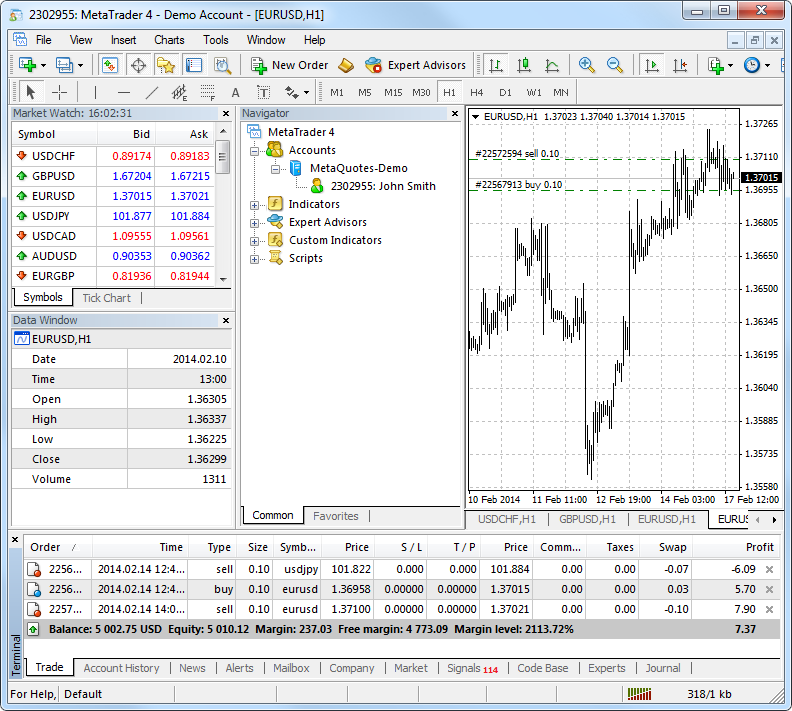
- After logging in, the account number and name are displayed in the Navigator.
MT4 interface
| Region | What is inside |
|---|---|
| Market Watch | Symbol list, Bid/Ask, tick chart, specification and new order window. |
| Navigator | Accounts, indicators, Expert Advisors and Scripts. |
| Chart | Price, periods, indicators, objects and trading levels. |
| Terminal | Trade, Account History, Alerts, Mailbox, Experts and Journal. |
| Toolbars | New order, AutoTrading, periods, scale and chart type. |
Panels are enabled via the View menu. If the chart “disappears”, first check Window and Profiles; if the symbol is not visible — open Symbols through Market Watch.
Symbols and specification
Right‑click on Market Watch and select Symbols or Show All. Brokers may add suffixes to instrument names: EURUSD.a, XAUUSDm, etc. They can indicate a separate account group or specific conditions.
In the specification, check the contract size, minimum lot, volume step, tick value, margin, trading hours, swap and stop‑level settings. Do not assume the parameters of one broker are universal for another.
Charts, timeframes, indicators and templates
Open the chart of the desired symbol, select candles and timeframe, adjust the scale and colors. MT4 offers nine standard timeframes from M1 to MN. Indicators and drawing objects are added via Insert. Custom indicators appear in the Navigator after installation and list refresh.
- Create a clean chart without unnecessary indicators.
- Add only those instruments for which you can explain the purpose.
- Save the layout as a Template.
- Save the window set as a Profile.
- Check whether the Ask Line and trading levels are displayed.
A template stores the layout of a single chart. A profile stores a set of open charts. Backing up the data folder is useful before reinstalling or moving the terminal.
Orders and positions in MT4
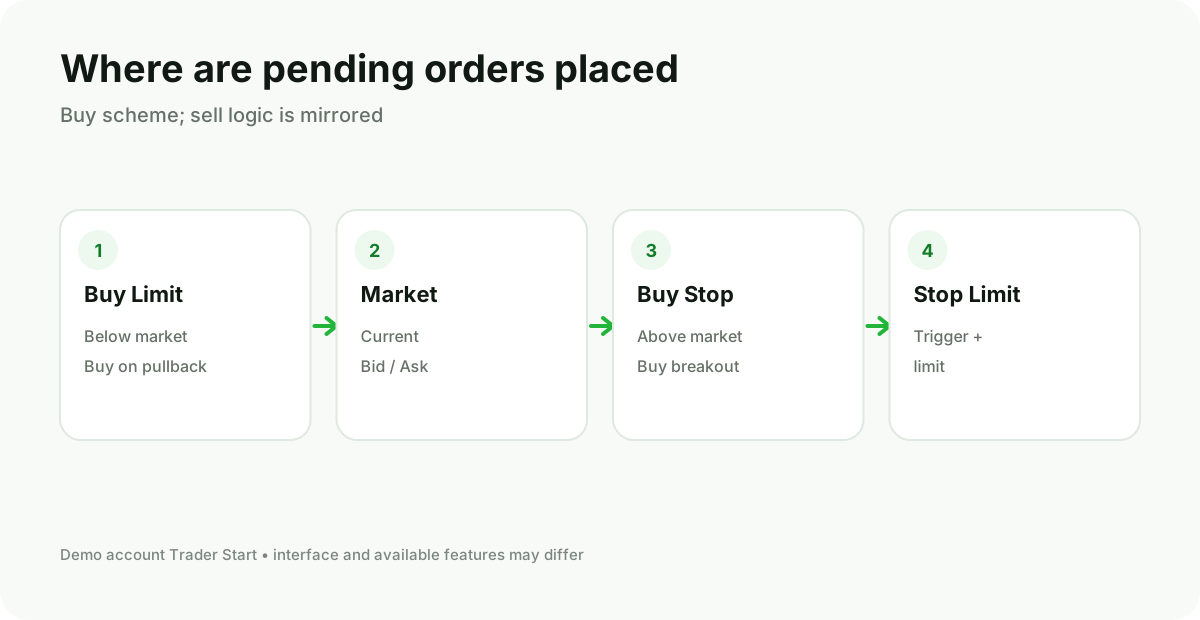
MT4 supports market buy and sell, as well as Buy Limit, Sell Limit, Buy Stop, and Sell Stop. The New Order window opens from the toolbar, the F9 key, or from Market Watch.
| Field | What to check |
|---|---|
| Symbol | Exact instrument and contract. |
| Volume | Volume in lots based on risk and symbol step. |
| Stop Loss | Scenario cancellation level; consider Bid/Ask and minimum distance. |
| Take Profit | Planned target, not a promise of exact execution. |
| Type | Market Execution, Instant Execution or Pending Order — depending on the broker's settings. |
| Comment | Optional note; the broker may modify technical comments. |
With Instant Execution the platform may request a new price. With Market Execution the order is filled at the available market price, so there may be a difference from the displayed quote.
Modification and closure
- Open the Trade tab in the bottom Terminal window.
- Double‑click the position or select Modify or Delete Order.
- Modify the S/L and T/P or close the position.
- For a partial close, specify a smaller volume, if the broker and account conditions allow it.
- Check the result in the Account History tab.
When One Click Trading is enabled, an action can be executed without separate confirmation. First, test it on a demo account and make sure you understand the button functions and the volume.
Risk, margin and monetary result
Balance includes closed trades, Equity also reflects the current floating profit or loss, Margin is the used collateral, Free Margin is the remaining reserve. The higher the total volume and leverage, the faster price changes affect the Margin Level.
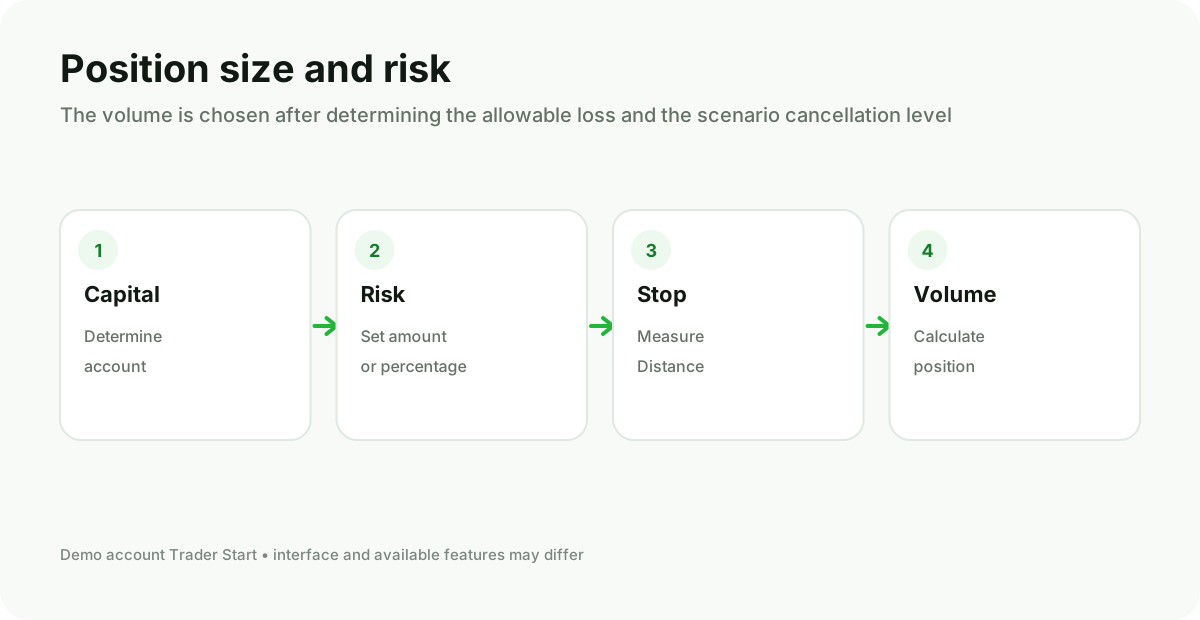
The same lot size in a currency pair, gold, and an index represents different contracts and risk. Start the calculation from the stop level and the allowable monetary loss, then select the volume.
MQL4, indicators and expert advisors
MQL4 is used to create Expert Advisors, custom indicators, scripts, and MT4 libraries. The source code usually has the MQ4 extension, the compiled file is EX4. A program for MT5 uses a different architecture and does not become an MQL4 program by simply renaming it.
- Open File → Open Data Folder.
- Place files in the correct MQL4 subfolders.
- Compile the source code in MetaEditor.
- Restart the Navigator or refresh the list.
- Check the input parameters, symbol, and timeframe.
- Enable AutoTrading only after testing.
- Read the Experts and Journal tabs.
Do not install DLLs and advisors of unknown origin. Any program with trading permissions can place orders on your behalf.
Strategy Tester
Strategy Tester allows you to test an advisor on historical data. Select the advisor, symbol, timeframe, model, date range, spread, and parameters. Then analyze not only profit but also drawdown, number of trades, result distribution, and robustness across other periods.
Historical data, tick model, and trading costs can make the test overly optimistic. Perform a separate forward test on data not used during optimization, and on a demo account.
WebTrader and mobile MT4
The web version runs in a browser, the mobile app is on iOS and Android. They are suitable for monitoring, charts and basic trading operations. Custom advisors and the full MQL4 environment belong to the desktop version.
- Set up phone lock.
- Do not trade over an unfamiliar public network unless necessary.
- Before confirming, increase the ticket and re‑verify the volume.
- After a connection loss, first refresh the positions list.
- Don't expect that closing the app will stop server‑side SL and TP: levels already accepted by the broker remain active according to server rules.
Common errors
| Message | Check |
|---|---|
| No connection | Internet, server, system time, antivirus or network blocking. |
| Invalid account | Account number, password, MT4 instead of MT5, Demo/Live. |
| Trade is disabled | Account status, trading session, investor password, broker restrictions. |
| Invalid S/L or T/P | Level side, minimum distance and current spread. |
| Off quotes / Requote | Price availability, volatility, connection and execution mode. |
| Not enough money | Free Margin, volume, contract and leverage. |
When it makes sense to choose MT4
- The required account or instrument is available from the broker specifically on MT4.
- You have a proven MQL4 expert advisor or indicator without an MT5 version.
- You understand the limitations of the older ecosystem and do not need MT5 features.
- The entire workflow has been tested on a demo account.
If both platforms provide the same required markets and there is no reliance on legacy software, study a detailed comparison of MT4 and MT5 before opening an account.
MT4 with our brokers
Tickmill, IC Markets and FP Trading list MetaTrader 4 among their platforms. Specific symbols, accounts and terms depend on the region and the selected legal entity.
Before trading, check the regulation, account terms and risk warning.
Frequently Asked Questions
Can MT4 still be used?
Yes, if the broker supports MT4 and provides a compatible account. Availability needs to be checked with the specific broker and legal entity.
Can an expert advisor be transferred from MT4 to MT5?
Not directly. MQL4 and MQL5 differ. Usually code adaptation and retesting are required.
Is an MT5 login compatible with MT4?
No, if the broker hasn't created a separate MT4 account. Server platforms and account types differ.
Why is the symbol not in Market Watch?
Open Symbols or Show All. If the symbol is missing from the entire list, it may be unavailable for this account type.
Will the EA keep running if the terminal is closed?
The local expert advisor will stop executing. For continuous operation, the terminal must stay running on the computer or VPS.