
What is cTrader
cTrader is Spotware’s trading platform with desktop, web, and mobile applications. It combines watchlists, multiple chart modes, chart trading, market and pending orders, Trade Watch, Depth of Market, and the cTrader Algo algorithmic environment.
The platform is focused on transparent order management and a modern interface. However, the availability of individual features, asset classes, quotes, copy trading, and trading conditions is determined by the broker and the account type.
Watchlists, charts, Quick Trade, standard orders, positions and journal.
cBots, indicators and plugins in C# or Python for cTrader Algo.
Windows, macOS, Web, iOS and Android with linking via cTrader ID.
cTrader accounts and platform support are described by the broker.
Where to open a compatible cTrader account
cTrader is available at IC Markets and FP Trading in supported regions. Before registering, check the account type and available instruments.
CFD and margin trading involve high risk.
cTrader ID and trading account
cTrader ID, or cTID, is a single login account for accessing the cTrader ecosystem. After linking with a broker, it shows the available demo and live trading accounts. This does not replace verification with the broker and does not merge all accounts into a single combined balance.
- Open a cTrader account with a broker.
- Create a cTrader ID using your own email address.
- Confirm the linkage of the trading account to cTID.
- Log in to the app and select the desired account in the Account bar.
- Check the currency, account type, Demo/Live status, and trading server.
Do not share access to your email and cTrader ID with third parties. Enable two-factor authentication wherever it is available, and keep backup recovery methods.
Which version to choose
| Version | Suitable for | Limitations and features |
|---|---|---|
| Windows / Mac | Full workstation, multiple charts, Algo, testing and development. | Installation required; automated systems require environment monitoring. |
| Web | Quick browser access, manual trading, charts and account management. | Development and local testing of algorithms belong to desktop. |
| Mobile | Account monitoring, Watchlists, charts, orders, positions and notifications. | Smaller screen and a different workflow; before placing an order, especially verify the volume carefully. |
cTrader interface
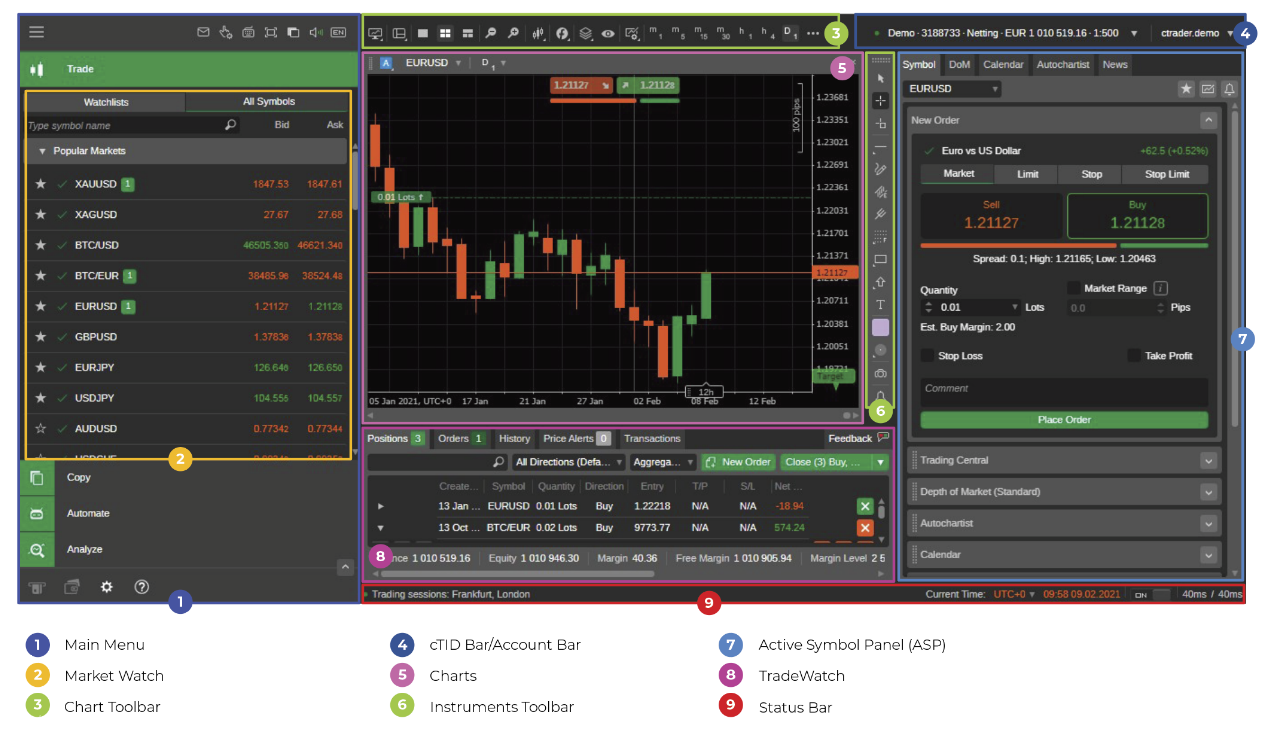
- Account bar. Switching linked accounts, balance, equity, margin and quick actions.
- Market Watch. Symbols, search, Watchlists and order creation.
- Charts. Charts, timeframes, display types, indicators, objects and trading.
- Active Symbol Panel. Details of the selected symbol and order placement.
- Trade Watch. Positions, pending orders, history, transactions and log.
- Applications. Trade, Copy, and Algo — the set may differ between versions and brokers.
In the Web you can open multiple charts and create orders from Market Watch, Active Symbol Panel, Trade Watch, or the chart’s context menu. Do not take the fastest route until you have developed the habit of double‑checking the symbol and volume.
Watchlists and instrument search
Watchlist — a custom group of symbols. Create separate lists for currencies, gold, indices, stocks, and actual positions. This reduces noise and the risk of selecting a similar contract.
- Find a symbol using the search.
- Open Symbol overview or details.
- Check the trading hours, minimum volume, step size, commission, swap and margin.
- Add the symbol to a themed Watchlist.
- Compare the Bid/Ask and the current spread.
The same underlying asset can have multiple contracts. The name, suffix, expiry and specification matter more than a familiar logo.
Charts and Workspace
Open a chart from the Watchlist or drag a symbol onto the workspace in the supported desktop version. Set the timeframe, chart type, color scheme, indicators, and objects. Save the workspace and verify synchronization across devices.
- The chart displays the correct symbol and source.
- A conscious timeframe has been selected.
- Order and position levels are visible on the scale.
- Indicators do not duplicate the same information.
- Workspace saved before the update.
cTrader order types
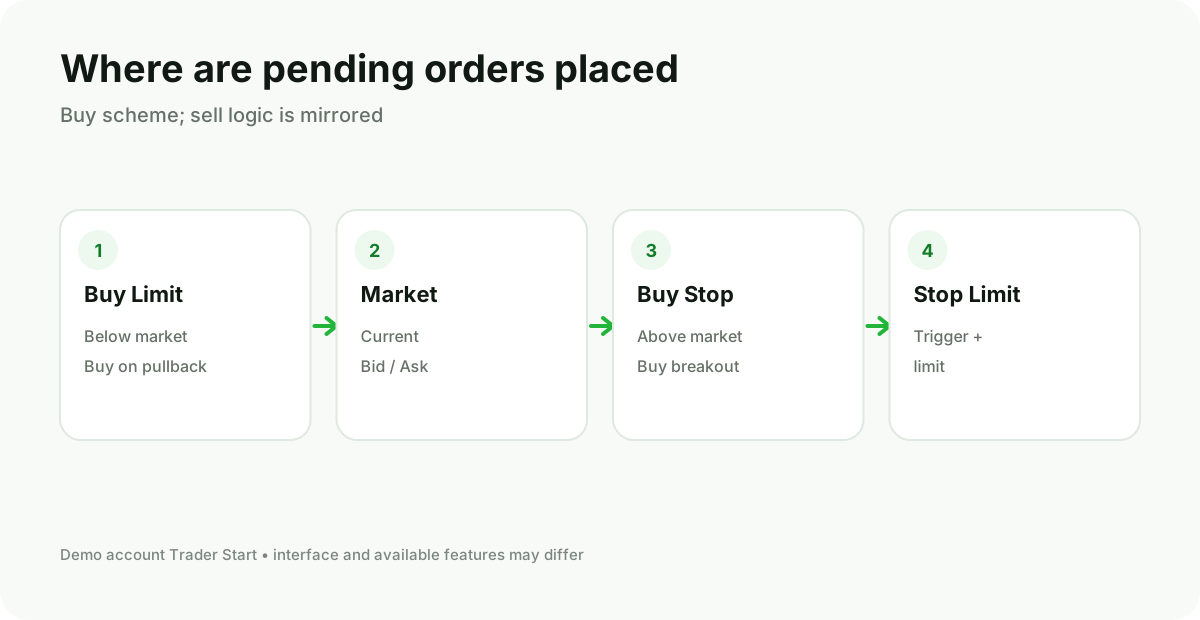
cTrader offers four standard order types: Market, Limit, Stop, and Stop Limit. The exact set of parameters and execution mode depend on the broker.
| Order | Logic | What to check |
|---|---|---|
| Market | Immediate buy or sell at the available price. | Volume, spread and allowed slippage. |
| Limit | Buy below or sell above the current price. | The order may remain unfilled. |
| Stop | Activation after price moves to the specified level. | During an impulse, the execution price may differ. |
| Stop Limit | After a stop condition, a limit order is generated. | Price control is increased, but execution is not guaranteed. |
How to create an order
- Select account and symbol.
- Open New Order.
- Select Market, Limit, Stop, or Stop Limit.
- Specify the direction Buy/Sell.
- Check whether the volume is entered in lots or units.
- Add S/L and T/P; if present, select the method for calculating the level.
- Check the margin assessment and risk cost.
- Submit the order and find it in Positions or Orders.
Lots and units: cTrader can display volume in lots or units. A value of 10,000 units and 0.10 lot may be equivalent for a standard currency specification, but this ratio cannot be universally applied to other instruments.
Quick Trade and chart trading
Quick Trade speeds up order submission and can operate without the usual confirmation. This is convenient for an experienced user, but it raises the cost of a mistaken click. Before enabling it, set the default volume and study the function’s behavior on a demo account.
On the chart you can create and move levels in the supported modes. After dragging, be sure to verify the actual value in Trade Watch: the visual line is the interface, and the server‑side order state is the source of truth.
S/L, T/P, protection and margin
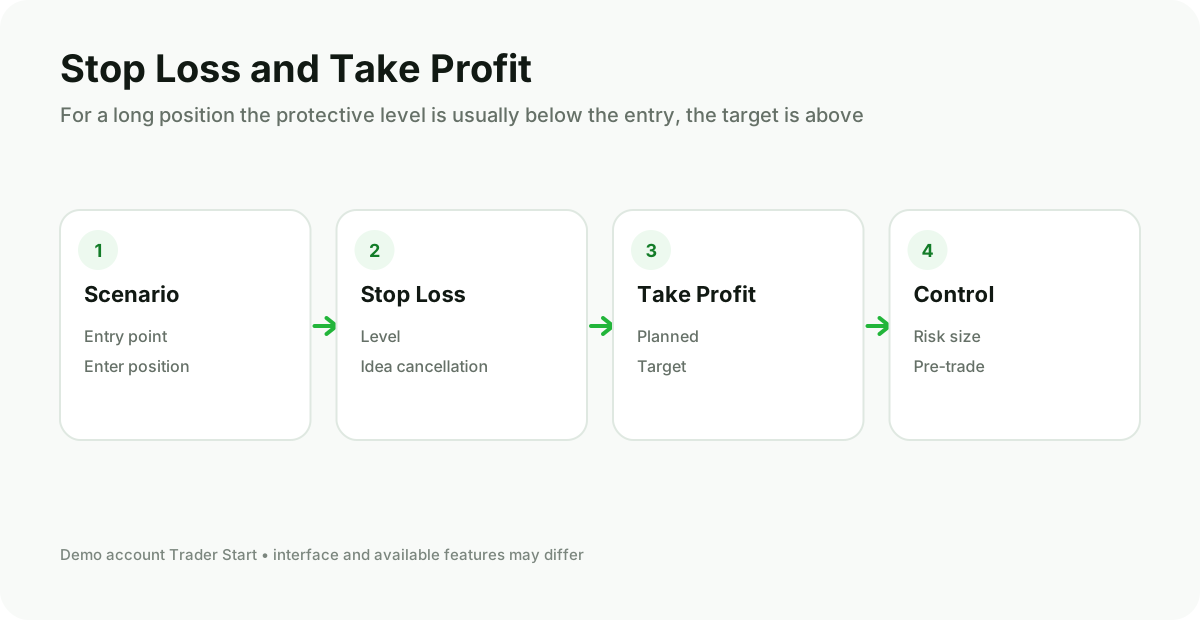
Stop Loss and Take Profit are attached to a position or order. Depending on the broker and the platform, additional protection methods may be available. Before using them, verify whether the function is stored on the server or requires a running application.
Monitor Balance, Equity, Margin, Free Margin, and Margin Level. Multiple positions in correlated instruments create a combined risk, even if each appears small individually.
Depth of Market
Depth of Market displays the available price and volume levels in the format provided by the broker or trading venue. For an over‑the‑counter CFD this is not necessarily the “entire global market.” The order book is useful for assessing the current structure of available liquidity, but it does not guarantee that the displayed volume will remain until execution.
Positions, Orders, and History
In Trade Watch, separate Positions and Orders: a position already exists, a pending order is waiting for conditions. Through the context menu you can modify protective levels, close the position or cancel the order. After the operation, check History and the log.
- Never click again without refreshing the state after a delay.
- Check whether you are closing the entire position or only a part of it.
- Monitor the profit currency and commission.
- Capture a screenshot and the transaction ID when contacting support.
cTrader Algo: cBots, indicators and plugins
cTrader Algo enables the creation of cBots, custom indicators, and plugins in C# or Python. Development, compilation, local testing, and optimization are performed in cTrader on Windows or Mac. Cloud instances can also be managed from Web/Mobile, but the availability of a specific scenario should be verified against the current documentation.
- Install cTrader desktop, .NET SDK, and Python if needed.
- Create a cBot or an indicator in Algo.
- Choose C# or Python.
- Build the project and fix errors.
- Add an instance to the appropriate symbol and timeframe.
- Run a backtest and optimization.
- Test the strategy on a different timeframe and a demo account.
- Limit the volume, number of positions, and daily risk.
Third‑party Python packages may run only locally or on a VPS and are not supported in cloud execution. This needs to be taken into account already at the algorithm design stage.
How to read a backtest
Don’t limit yourself to the final return. Evaluate maximum drawdown, number of trades, duration, profit distribution, commissions, spread, slippage, and parameter stability. A good test on a single symbol and period may be the result of overfitting.
- A period encompassing different market regimes was used.
- Costs are close to real account conditions.
- There is a separate out-of-sample segment.
- Parameters do not break with small changes.
- A demo verification has been performed in real time.
cTrader and Trader Start connection
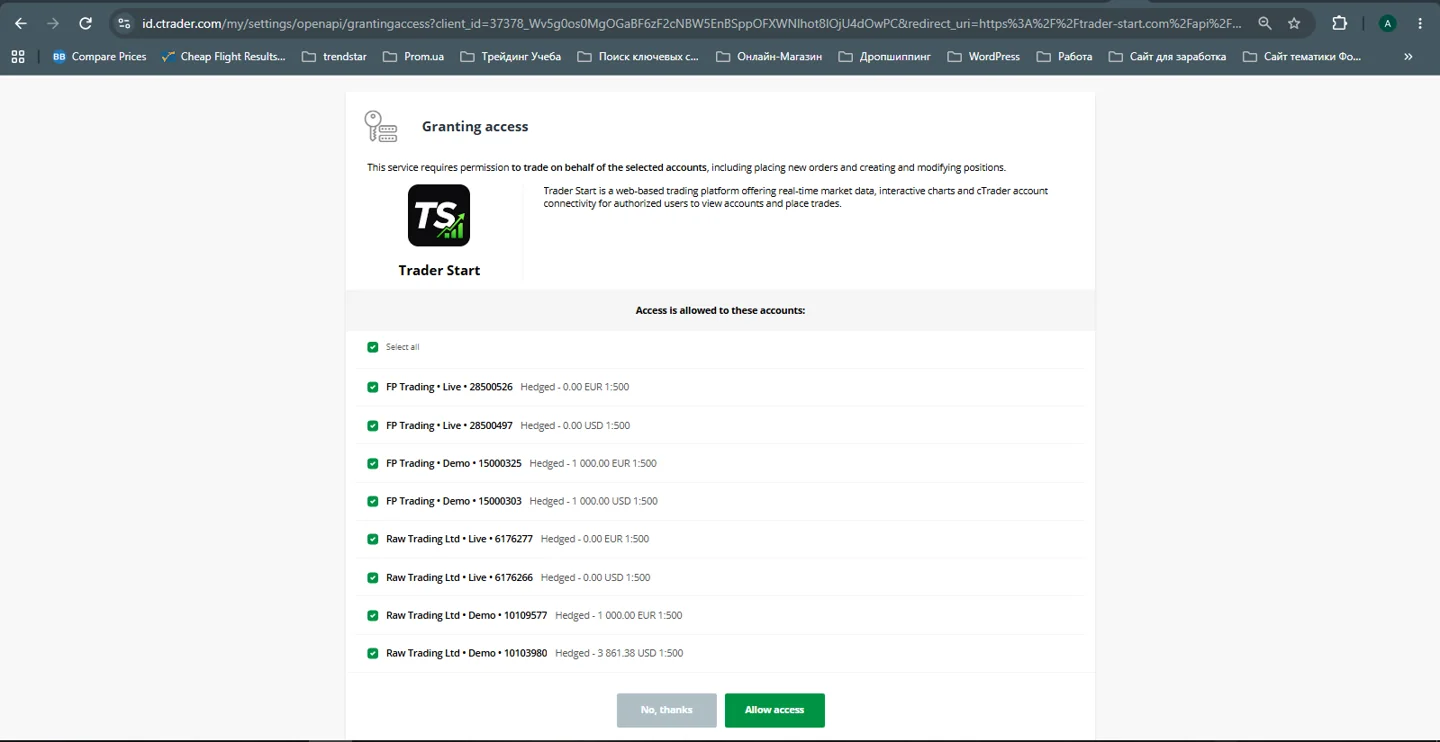
Trader Start uses official cTrader authorization with compatible broker accounts. Select an eligible DEMO or partner LIVE account and verify symbol availability before sending orders. MT4 or MT5 credentials do not automatically grant access to a cTrader account.
- Start the broker connection from Trader Start.
- Sign in with your cTrader ID.
- Tick the specific accounts you want to authorize.
- Allow access and return to Trader Start.
- Use the Trader Start account selector to choose the account you will trade on.
Detailed setup of charts, quote sources, order ticket functions, partial close and the broker panel is described in the full Trader Start terminal guide.
cTrader Mobile
In the mobile app, Watchlists are the primary entry point to symbols, charts, and trading operations. You can view positions, pending orders, alerts, and history. On a small screen it is especially important not to mix multiple accounts and to check Demo/Live before each order.
Common issues
| Issue | What to check |
|---|---|
| Account not displayed | Connection with the correct cTrader ID, broker's letter, legal entity and account status. |
| No symbol | Search, account type, trading group and product availability in the region. |
| Invalid volume | Lots/units mode, minimum and step of the instrument. |
| Order rejected | Session, margin, protective levels, account status and log. |
| cBot does not start | Assembly, dependencies, instance, parameters, rights and Algo log. |
| The third-party chart result may differ. | Quote source on the chart and broker data in the trading panel. |
cTrader at IC Markets and FP Trading.
IC Markets and FP Trading list cTrader among the available platforms. Before registering, check which legal entity serves your country and which instruments are available on the cTrader account.
The availability of the platform does not eliminate CFD risk and does not guarantee trading results.
Frequently Asked Questions
Do I need a separate cTrader ID for each broker?
A single cTrader ID can consolidate linked accounts, but the specific binding and availability depend on the broker. Carefully verify the selected account.
Can I log into cTrader using an MT5 login?
Usually not. The broker must create a compatible cTrader account and link it to a cTrader ID.
Which to choose for a cBot: C# or Python?
Both languages are officially supported. The choice depends on experience, libraries, and the execution environment. Third‑party Python packages may require local execution or a VPS.
Can a cBot be run from a phone?
The mobile app can manage supported cloud instances, but creation and full testing are performed on Windows or Mac.
Is Quick Trade safe?
It is an acceleration tool, not a protection tool. An erroneous click can instantly create a trade, so first set the volume and practice on a demo.